Back to Network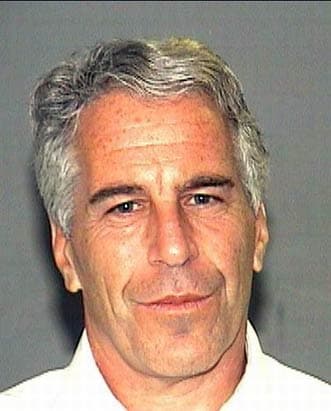












4
Shared Docs
4
Same-Page
4 / 4
Mentions
Document Mentions (4 shared documents)
2 mentions1 same-page
Page ?Same page
to the webex meeting. In order to connect to the audio for the meeting, Jeffrey will need to run a Speaker/Microphone Audio Test by clicking on the Audio drop down menu in the webex meeting screen, and then select the Speaker/Microphone Audio Test option. A dialog box will then appear, and he will hav
T button, he should hear a chime. Once the chime is heard, please click on the OK button to close the Speaker/Microphone Audio Test dialog box. The Webex program will be used to visualize Chad's screen to view material and speak with one another online. In order to speak through the intemet via Webex,
2 mentions1 same-page
Page ?Same page
to the webex meeting. In order to connect to the audio for the meeting, Jeffrey will need to run a Speaker/Microphone Audio Test by clicking on the Audio drop down menu in the webex meeting screen, and then select the Speaker/Microphone Audio Test option. A dialog box will then appear, and he will hav
T button, he should hear a chime. Once the chime is heard, please click on the OK button to close the Speaker/Microphone Audio Test dialog box. The Webex program will be used to visualize Chad's screen to view material and speak with one another online. In order to speak through the internet via Webex
2 mentions1 same-page
Page ?Same page
to the webex meeting. In order to connect to the audio for the meeting, Jeffrey will need to run a Speaker/Microphone Audio Test by clicking on the Audio drop down menu in the webex meeting screen, and then select the Speaker/Microphone Audio Test option. A dialog box will then appear, and he will hav
T button, he should hear a chime. Once the chime is heard, please click on the OK button to close the Speaker/Microphone Audio Test dialog box. The Webex program will be used to visualize Chad's screen to view material and speak with one another online. In order to speak through the internet via Webex
Sponsored
2 mentions1 same-page
Page ?Same page
to the webex meeting. In order to connect to the audio for the meeting, Jeffrey will need to run a Speaker/Microphone Audio Test by clicking on the Audio drop down menu in the webex meeting screen, and then select the Speaker/Microphone Audio Test option. A dialog box will then appear, and he will hav
T button, he should hear a chime. Once the chime is heard, please click on the OK button to close the Speaker/Microphone Audio Test dialog box. The Webex program will be used to visualize Chad's screen to view material and speak with one another online. In order to speak through the intemet via Webex,
Sponsored
Mutual Connections (45)
Entities connected to both Audio and Webex
Jeffrey Epstein
PERSON40 w/ Audio·44 w/ Webex
Ghislaine Maxwell
PERSON5 w/ Audio·23 w/ Webex
J. Robert Oppenheimer
PERSON4 w/ Audio·16 w/ Webex
Richard Kahn
PERSON8 w/ Audio·11 w/ Webex
LB
Leon Black
PERSON5 w/ Audio·14 w/ Webex
United States
LOCATION8 w/ Audio·10 w/ Webex
DI
Darren Indyke
PERSON5 w/ Audio·12 w/ Webex
Alfredo Rodriguez
PERSON10 w/ Audio·7 w/ Webex
Lesley Groff
PERSON6 w/ Audio·11 w/ Webex
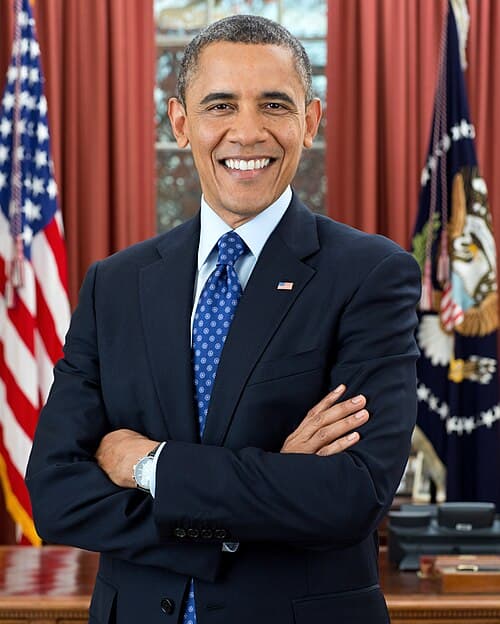
Barack Obama
PERSON6 w/ Audio·11 w/ Webex
FBI
ORGANIZATION4 w/ Audio·12 w/ Webex
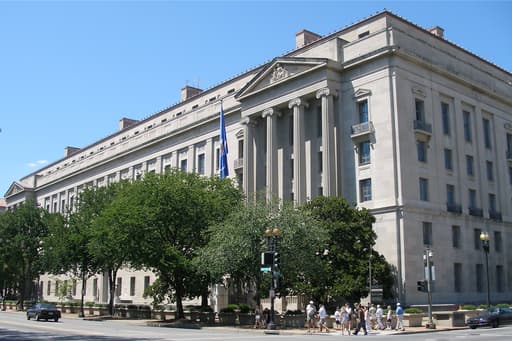
Department of Justice
ORGANIZATION3 w/ Audio·13 w/ Webex
Donald Trump
PERSON2 w/ Audio·14 w/ Webex
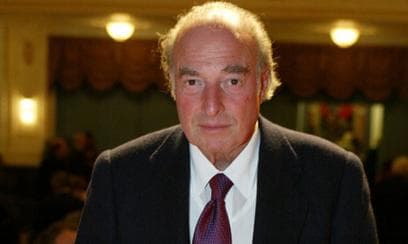
Marc Rich
PERSON9 w/ Audio·6 w/ Webex
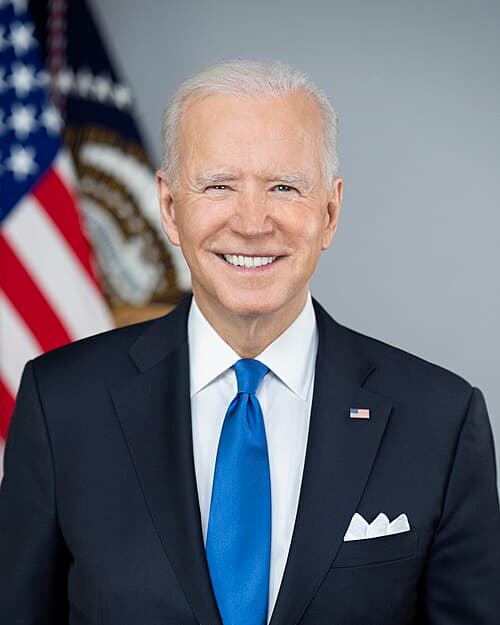
Joe Biden
PERSON2 w/ Audio·13 w/ Webex
Julie K. Brown
PERSON3 w/ Audio·12 w/ Webex
Eric Trump
PERSON6 w/ Audio·8 w/ Webex
Samantha Power
PERSON7 w/ Audio·7 w/ Webex
Poland
LOCATION4 w/ Audio·9 w/ Webex
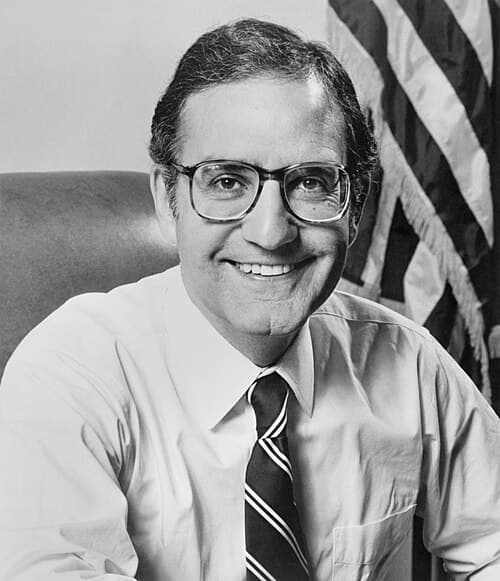
George Mitchell
PERSON2 w/ Audio·11 w/ Webex